Video content is now expected almost everywhere: product pages, social media feeds, tutorials, ads, presentations, and blogs. The problem is that traditional video production still takes time. You usually need footage, editing software, effects, music, export settings, and at least some editing experience before you can publish a simple clip.
That is why online AI video tools have become useful for people who want faster content production. Instead of starting with a camera or a complex timeline, you can start with a written idea or a single image. For Softlay readers who often look for practical software, utilities, and online tools, insMind is worth knowing because it works directly in the browser and focuses on a simple creation flow.
The insMind AI video generator brings multiple video-generation options into one online platform. It can help users create videos from text prompts, animate existing images, test ad concepts, prepare short social clips, and build visual drafts without downloading desktop video editing software.
What Is insMind AI Video Generator?
insMind AI Video Generator is an online video creation tool that uses artificial intelligence to generate short videos from user instructions. You can describe a scene in text, upload a reference image, select video settings, and let the tool generate a preview. The workflow is designed for users who want quick visual output rather than a complicated editing project.
The platform is especially helpful when you already know what you want to communicate but do not have footage ready. A marketer can create a quick campaign concept. An online seller can animate a product photo. A blogger can prepare a moving visual for an article. A teacher or trainer can create a short explainer scene. A creator can test a visual idea before spending time on a larger edit.
It is not meant to replace every professional video workflow. Long-form editing, brand commercials, and detailed post-production may still require advanced tools. But for fast video drafts and short visual assets, insMind gives users a cleaner starting point.
Why This Tool Fits Online Creators and PC Users
Many users do not want another large application installed on their computer just to make a short clip. They want an online tool that opens quickly, accepts a simple input, and produces something useful. That is where insMind fits well with a software-guide audience.
- No heavy editing setup: Create videos online without opening a desktop editor.
- Text or image input: Start from a prompt when you have an idea, or upload a photo when you already have a subject.
- Useful for short content: Make clips for TikTok, Instagram Reels, YouTube Shorts, blogs, landing pages, and product previews.
- Good for testing concepts: Generate visual directions before spending money on a full production.
- Beginner-friendly workflow: The main process is simple enough for non-editors.
Text to Video vs Image to Video: Which Should You Use?
Before creating a video, decide what you already have. If you only have a written idea, start with text. If you already have a product image, portrait, poster, artwork, or brand visual, start with an image. Choosing the right input helps the final video stay closer to your goal.
| Workflow | Best For | Example Use |
| Text to Video | Ideas, scenes, scripts, storyboards, campaign concepts | Create a short visual from a prompt such as a product reveal, tutorial intro, or cinematic background scene. |
| Image to Video | Product photos, portraits, designs, posters, brand graphics | Animate a still image with motion, camera movement, or a product-showcase effect. |
If your project begins with a written message, try the insMind text to video workflow. In many real projects, both methods are useful: text helps generate fresh ideas, while image input helps keep the result aligned with an existing asset.
How To Create an AI Video With insMind
The process below follows a practical browser-based workflow. The exact output depends on your prompt, image, model, and settings, but the steps are easy to follow for most short video projects.
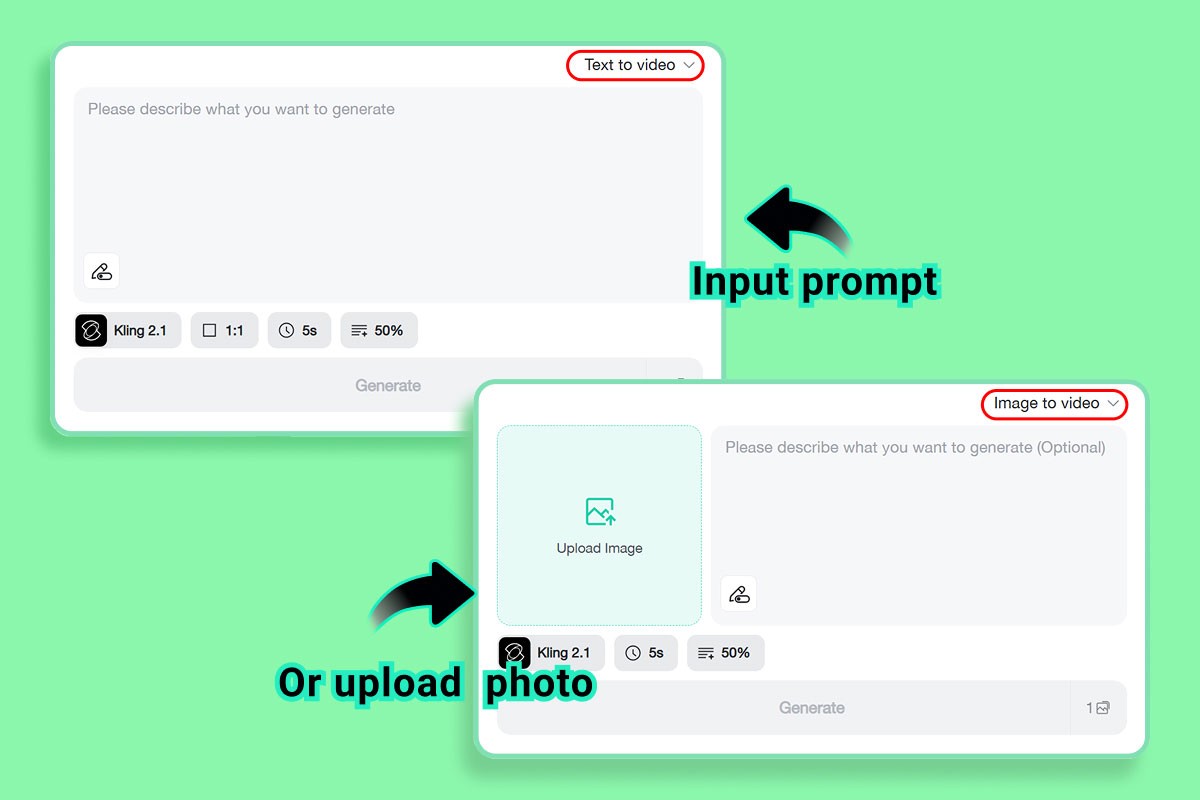
Step 1: Enter a Text Prompt or Upload an Image
Open insMind and choose the video generator workflow. If you want the tool to create a scene from scratch, type a detailed prompt. Include the subject, setting, action, style, lighting, camera movement, and purpose. For example, you might write: “A modern laptop on a clean desk, slow camera push-in, soft daylight, professional software review style.”
If you already have a visual, upload the image instead. This works well for product photos, portraits, ecommerce graphics, banners, posters, and artwork. After uploading, add a short instruction explaining what kind of motion you want, such as a slow zoom, gentle camera movement, product reveal, or background animation.
Step 2: Choose the Video Model, Ratio, and Duration
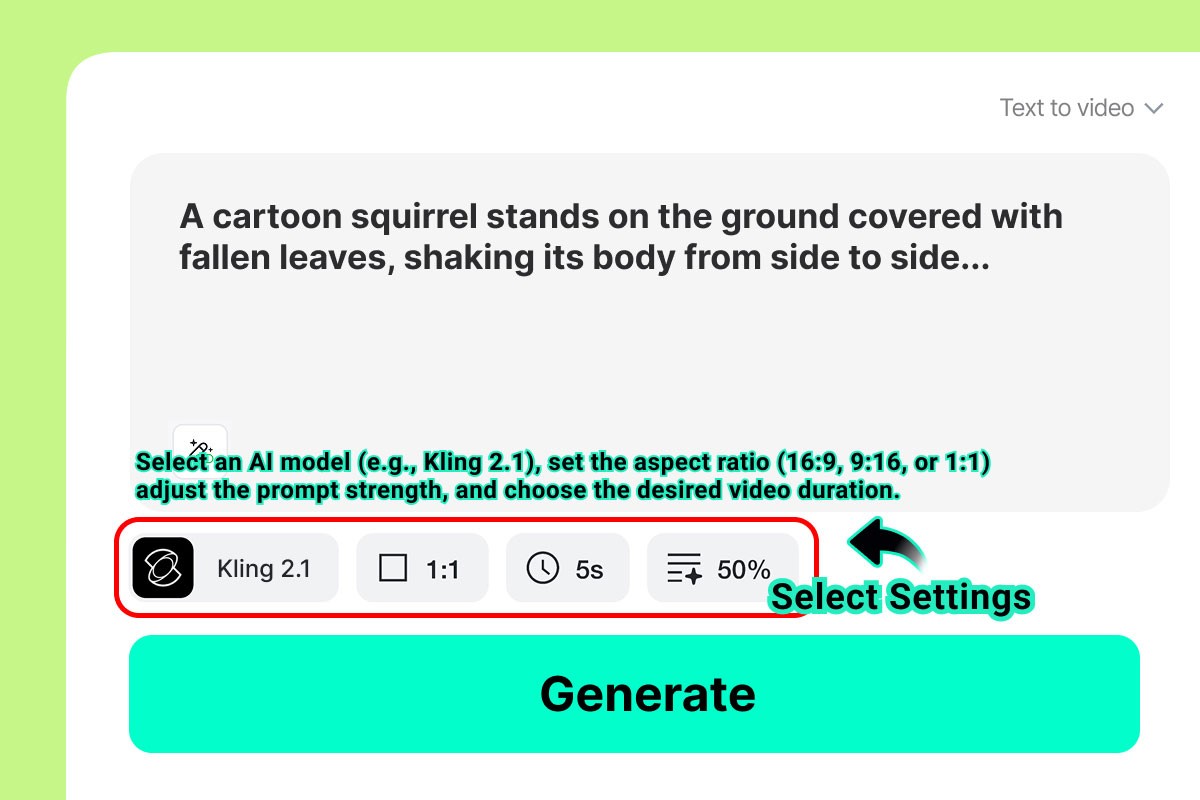
After adding your input, adjust the available video settings. Choose the AI model if multiple options are shown, then select the aspect ratio that matches your publishing platform. Vertical video is usually better for Shorts, Reels, and TikTok. Horizontal video is better for websites, blog visuals, YouTube, presentations, and software guides.
Also check the duration and quality options before generating. A short clip is usually enough for a product teaser, social post, or article visual. If prompt strength or similar controls are available, use them to guide how closely the output should follow your text and image input.
Step 3: Generate and Review the Preview
Click the generate button and wait for insMind to create the video preview. When the result is ready, review it carefully. Check whether the subject is clear, whether the motion fits the prompt, and whether the clip works for the platform where you plan to publish it.
For image-to-video projects, make sure the main product, face, logo, or design still looks recognizable. For text-to-video projects, check the scene composition, motion, and visual style. If the result is close but not perfect, revise the prompt with more direct language. Short instructions usually work better than overly complicated requests.
Step 4: Download and Use the Final Video
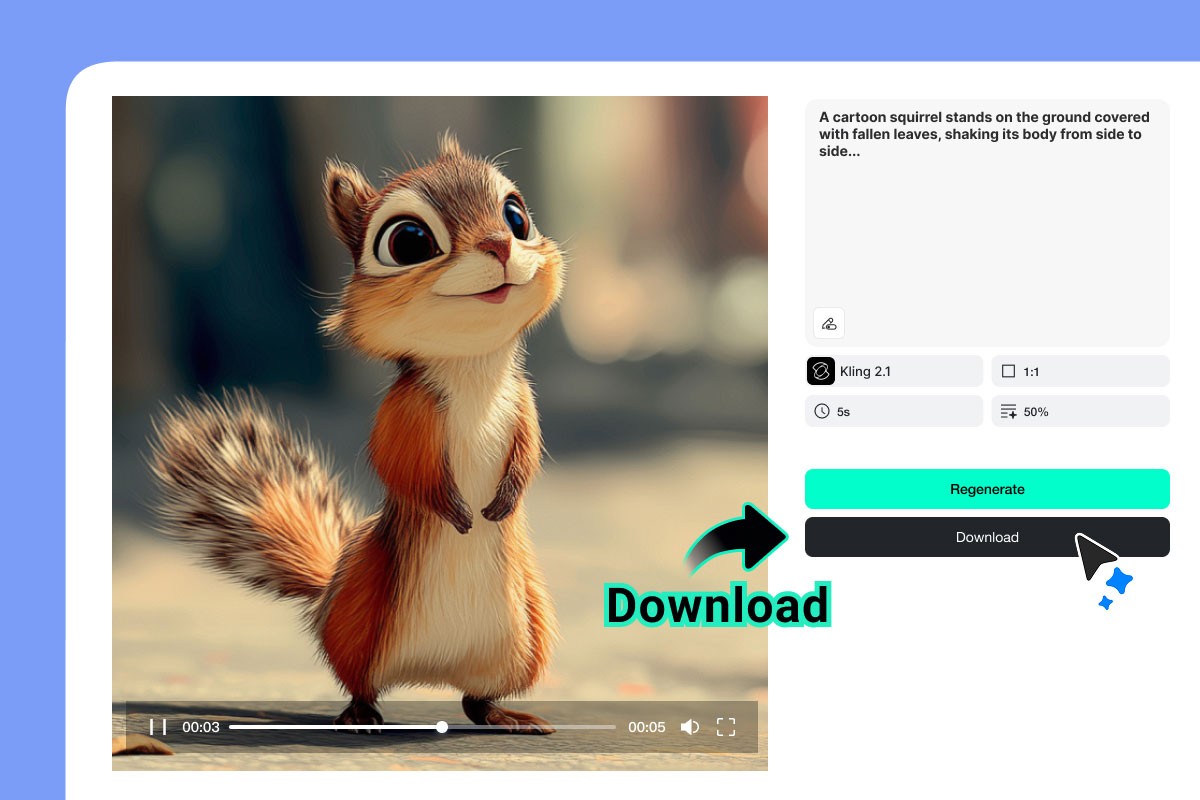
Once the preview looks good, download the video. You can use it in a social media post, blog article, website section, ecommerce product page, presentation, ad test, or content calendar. If you plan to publish it on a platform with specific size rules, choose the correct ratio before downloading or prepare a separate version for that platform.
It is also smart to save your best prompt and settings. This makes it easier to create a consistent series later, especially if you are making product videos, software explainers, social clips, or recurring campaign assets.
Best Use Cases for insMind
insMind is most useful when you need a short, clear video asset quickly. Below are common situations where the tool can save time.
- Product demos: Turn a product image into a simple reveal or motion clip for an online store.
- Social media posts: Create quick vertical videos for short-form content platforms.
- Blog visuals: Add motion to tutorials, guides, reviews, and roundup articles.
- Ad concept testing: Try several creative directions before preparing a bigger campaign.
- Education and explainers: Generate visual clips for lessons, presentations, or training material.
- Personal content: Animate photos, creative artwork, event images, or simple story ideas.
Tips To Get Better AI Video Results
AI video generation works best when your input is clear. A weak prompt such as “make a good video” gives the tool too little direction. A stronger prompt names the subject, action, style, camera motion, and intended use.
For example, instead of writing “make a product video,” try: “A sleek wireless headphone product reveal on a dark studio table, slow rotating camera movement, soft blue accent light, premium ecommerce ad style.” This gives the AI more useful details.
For image-based videos, upload a clean and sharp image. Avoid crowded backgrounds if the subject is important. If you want a product to remain accurate, use a high-quality product photo and keep the motion request simple. A slow zoom, gentle rotation, or clean reveal is often more reliable than a complex multi-action scene.
Who Should Try insMind?
insMind is a good option for creators and teams that need more video content but do not want to start every project in a traditional editor. It is especially useful for small businesses, ecommerce sellers, social media managers, bloggers, educators, and software reviewers who want quick visual drafts.
It can also help PC users who prefer lightweight online tools. You do not need to install a full video-editing suite just to test a creative idea or produce a short clip. Open the tool, enter a prompt or upload an image, choose the settings, generate the preview, and download the result.
FAQs About insMind AI Video Generator
Can insMind create videos from text?
Yes. You can describe a scene, action, product idea, or creative concept in a prompt and use insMind to generate a video from that text.
Can I animate a single product image?
Yes. Upload a product image and add a motion instruction. This is useful for ecommerce previews, product reveals, and social media content.
Do I need video editing experience?
No advanced editing experience is required for the basic workflow. The tool is designed around prompt input, image upload, settings, preview, and download.
Is insMind useful for social media content?
Yes. You can create short clips for platforms such as TikTok, Instagram Reels, YouTube Shorts, and other visual channels by choosing a suitable aspect ratio and video style.
Final Verdict
insMind is a practical online AI video generator for users who want to turn ideas and images into short videos without a heavy editing workflow. It is easy enough for beginners, flexible enough for creators, and useful for many common content needs, from product clips to blog visuals and social posts.
If you need fast video assets for marketing, ecommerce, tutorials, or everyday publishing, insMind gives you a simple place to start. Write a clear prompt, upload an image when needed, choose your settings, generate a preview, and download the version that works best for your project.