Running into issues like a frozen screen, an iPhone stuck on the Apple logo, or endless reboot loops can quickly turn a normal day into a frustrating one. Even worse, many traditional fixes, like restoring via iTunes, often lead to complete data loss.
That’s where a dedicated tool like TunesKit iOS System Recovery comes in. Designed to fix a wide range of iOS problems without requiring advanced technical skills, it offers multiple repair and utility features in one place. In this review, I’ll break down what makes it stand out, how each function works, and whether it’s worth using.
What Makes TunesKit iOS System Recovery Stand Out?
TunesKit iOS System Recovery isn’t just a basic repair tool, it’s an all-in-one solution for fixing, resetting, and managing iOS devices. What sets it apart is its balance between simplicity and powerful functionality. These features make it accessible for beginners while still powerful enough for advanced users.
- No Data Loss Repair Option: Fix common iOS issues without deleting your personal data
- High Success Rate: Designed to resolve a wide range of system problems effectively
- User-Friendly Interface: Clean layout with step-by-step guidance for easy operation
- Wide Compatibility: Supports most iPhone, iPad, and iPod touch models and iOS versions
- Fast Firmware Download: Optimized process to download and install firmware quickly
- Multiple Repair Modes: Flexible options to handle both minor and serious system issues
- No Jailbreak Required: Perform all operations without compromising device security
- All-in-One Toolkit: Combines repair, reset, upgrade/downgrade, and utility tools in one program
- Safe and Secure Process: Protects your device from further damage during repair
- Free Essential Tools Included: Access features like Recovery Mode and iTunes repair at no cost
These features work together to provide a smooth and reliable experience when fixing or managing iOS devices.
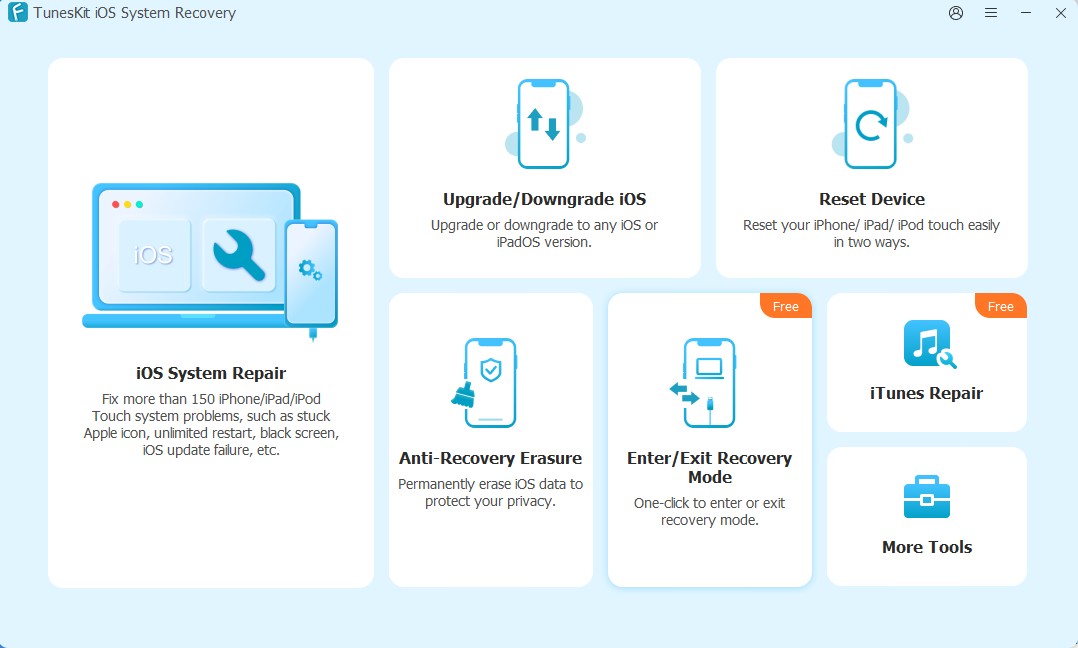
Overview of TunesKit iOS System Recovery Functions
1. iOS System Repair Without Data Loss
One of the core features of TunesKit iOS System Recovery is its ability to fix over 150 iOS system issues. These include problems like iPhone stuck on support.apple.com/iphone/restore, iPhone green screen, Boot loop, iOS update failure, Frozen or unresponsive device. There are two repair modes available:
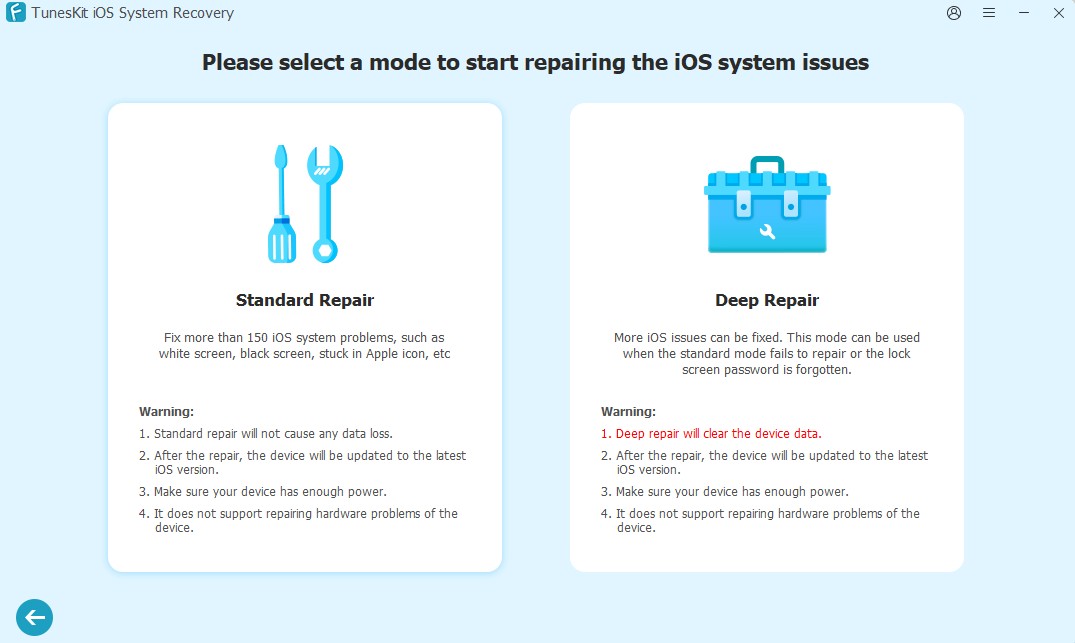
Standard Repair
- Fixes most common issues
- Keeps your data intact
- Ideal for minor system glitches
Deep Repair
- Handles serious system problems
- Higher success rate
- Erases all data on the device
Step guide to use TunesKit iOS System Recovery to repair iPhone/iPad:
1. Download and launch TunesKit iOS System Recovery. Connect your iPhone.
2. Select “iOS System Repair” from the interface.
3. Choose Standard Repair to fix device without data loss.
4. Confirm device information and download firmware.
5. Once downloaded successfully, click Start Standard Repair and wait for the process to finish.
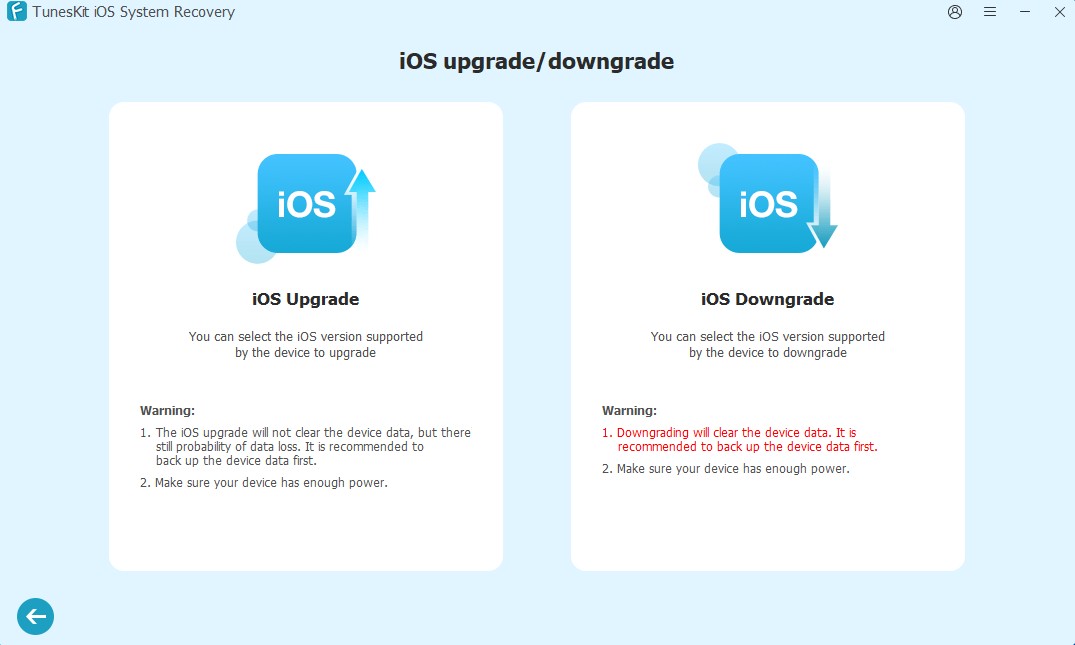
2. Upgrade/Downgrade iOS Fastly
TunesKit allows you to upgrade iOS version quickly without using iTunes or Finder. This is especially useful if a new update causes bugs or compatibility issues. And if you’re not satisfied with the upgraded system, you can easily downgrade iOS version with this function.
Key benefits:
- No jailbreak required
- Supports multiple iOS versions
- Simple one-click process
You can easily move to a more stable version or test a newer update without risking system errors.
Steps to upgrade or downgrade iOS system with TunesKit:
1. Before starting, make sure your device has enough power. Launch TunesKit iOS System Recovery and connect your device, choose Upgrade/Downgrade iOS.
2. According to your need, choose iOS Upgrade (no data loss) or iOS Downgrade (erase data).
3. Choose a firmware version and download it.
4. Click Start Upgrade or Start Downgrade to finish the process.
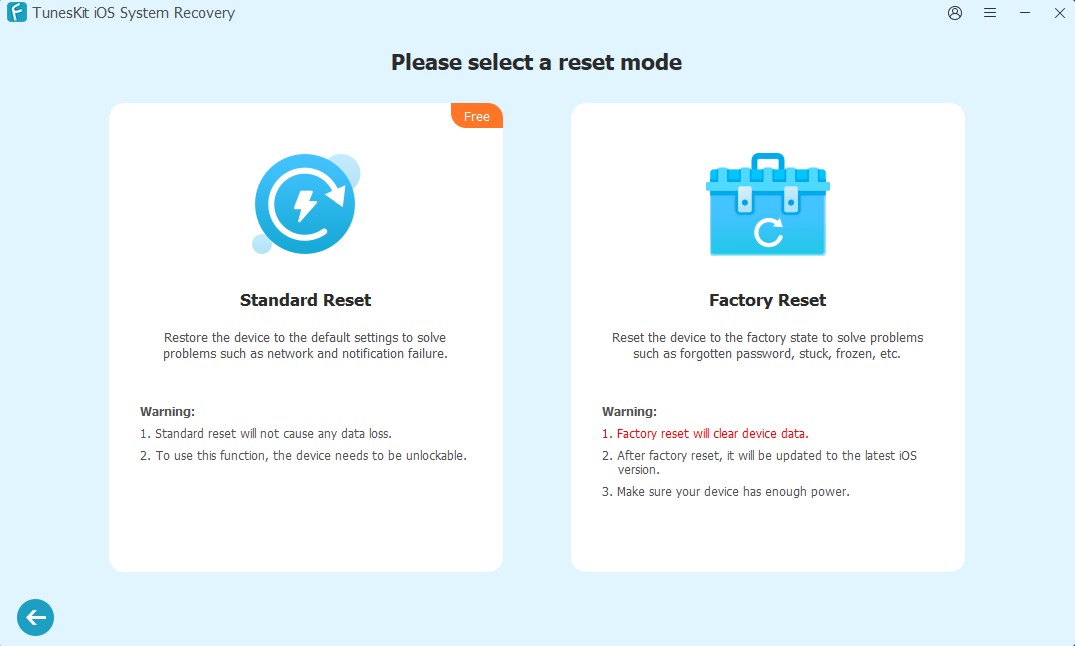
3. Reset Device Without Passcode or iTunes
If you forgot your passcode, your iPhone is disabled, or you bought a locked second-hand device, this feature helps you reset the device without needing iTunes and passcode. The process is simple:
1. Connect your device and open TunesKit.
2. Select Reset Device and choose the reset option.
3. Download firmware package, and reset your iPhone in minutes.
4. Anti-Recovery Erasure: Permanently Wipe Data
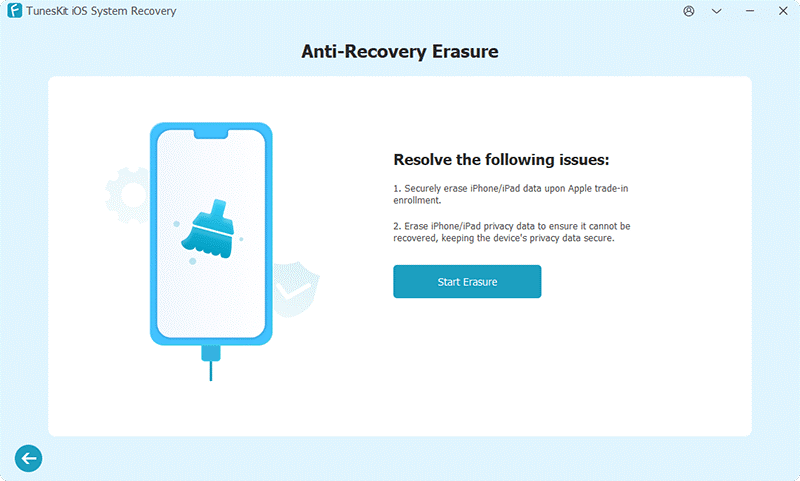
For users who plan to sell or give away their device but are concerned about privacy, TunesKit iOS System Recovery offers an anti-recovery erasure feature that permanently deletes data from your device. Unlike a normal reset, this ensures that your personal information cannot be recovered by any data recovery tools.
Steps:
1. Connect your device and choose Anti-Recovery Erasure from TunesKit.
2. Click Start Erasure and wait for the process to finish.
5. Enter/Exit Recovery Mode in One Click (Free Feature)
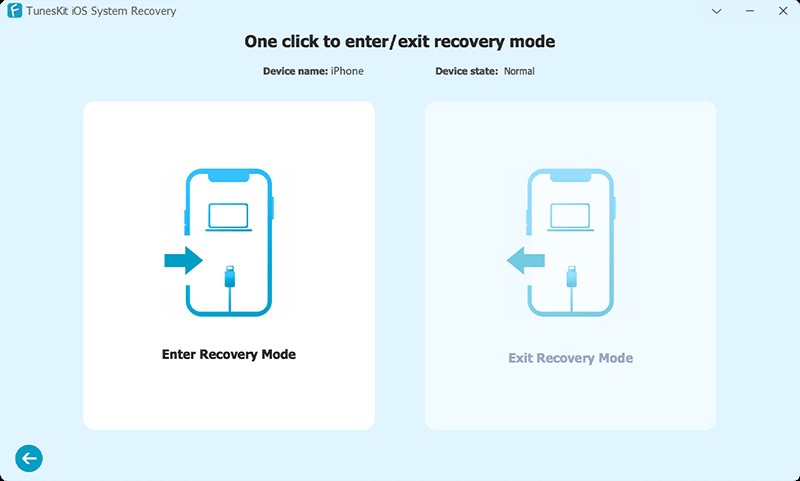
Entering Recovery Mode manually can be confusing, especially with different button combinations for each iPhone model. TunesKit iOS System Recovery simplifies this process with a one-click solution, making entering recovery mode instantly and exiting recovery mode safely, without any technical skills required. This feature is completely free, making it a handy tool even if you don’t use the full software.
Steps:
1. Just connect your device and choose Enter/Exit Recovery Mode.
2. Click Enter Recovery Mode or Exit Recovery Mode, and your device will be done after a few seconds.
6. iTunes Repair for Free
TunesKit also includes a free iTunes repair tool that fixes common issues related to iTunes installation and connectivity. It helps resolve:
- iTunes is not recognizing your device
- Installation errors
- Update failures
This can save time compared to reinstalling iTunes manually.
Standard Repair vs Deep Repair: Which One Should You Choose?
Choosing between Standard and Deep Repair depends on the severity of your issue.
- Go with Standard Repair if your device has minor problems like freezing, screen glitches, or update errors. It’s faster and keeps your data safe.
- Choose Deep Repair if your iPhone is severely damaged at the system level, such as being stuck in a boot loop or completely unresponsive.
In most cases, it’s best to start with Standard Repair and only move to Deep Repair if Standard Repair doesn’t work.
Pros and Cons of TunesKit iOS System Recover
Pros
- Fixes 150+ iOS system issues without data loss
- Two Repair modes to choose
- Easy-to-use interface
- Multiple tools in one software
- Free features available (Recovery Mode & iTunes repair)
Cons
- Deep Repair causes data loss
- Full features require a paid license
- Requires a computer for most functions
FAQs About TunesKit iOS System Recovery
- Is TunesKit iOS System Recovery safe to use?
Yes, it is safe and widely used. It does not contain malware and follows standard repair processes.
- Will TunesKit iOS System Recovery erase my data?
Standard Repair does not erase data, but Deep Repair and reset features will.
- Can TunesKit iOS System Recovery fix all iOS issues?
It can fix most common system problems, but hardware issues cannot be resolved by software.
- Do I need technical skills to use TunesKit iOS System Recovery?
No, the software is designed for beginners with step-by-step guidance.
Final Verdict: Is TunesKit iOS System Recovery Worth It?
If you’re dealing with iPhone system issues and want a reliable solution without complicated steps, TunesKit iOS System Recovery is definitely worth considering. It combines powerful repair capabilities with useful extra features like iOS version management, device reset, and secure data erasure.
For most users, the Standard Repair mode alone makes it a valuable tool, especially since it can fix problems without data loss. Meanwhile, advanced users will appreciate the flexibility offered by Deep Repair and additional utilities.
Overall, TunesKit stands out as a well-rounded iOS repair tool that delivers both convenience and performance, making it a solid choice.