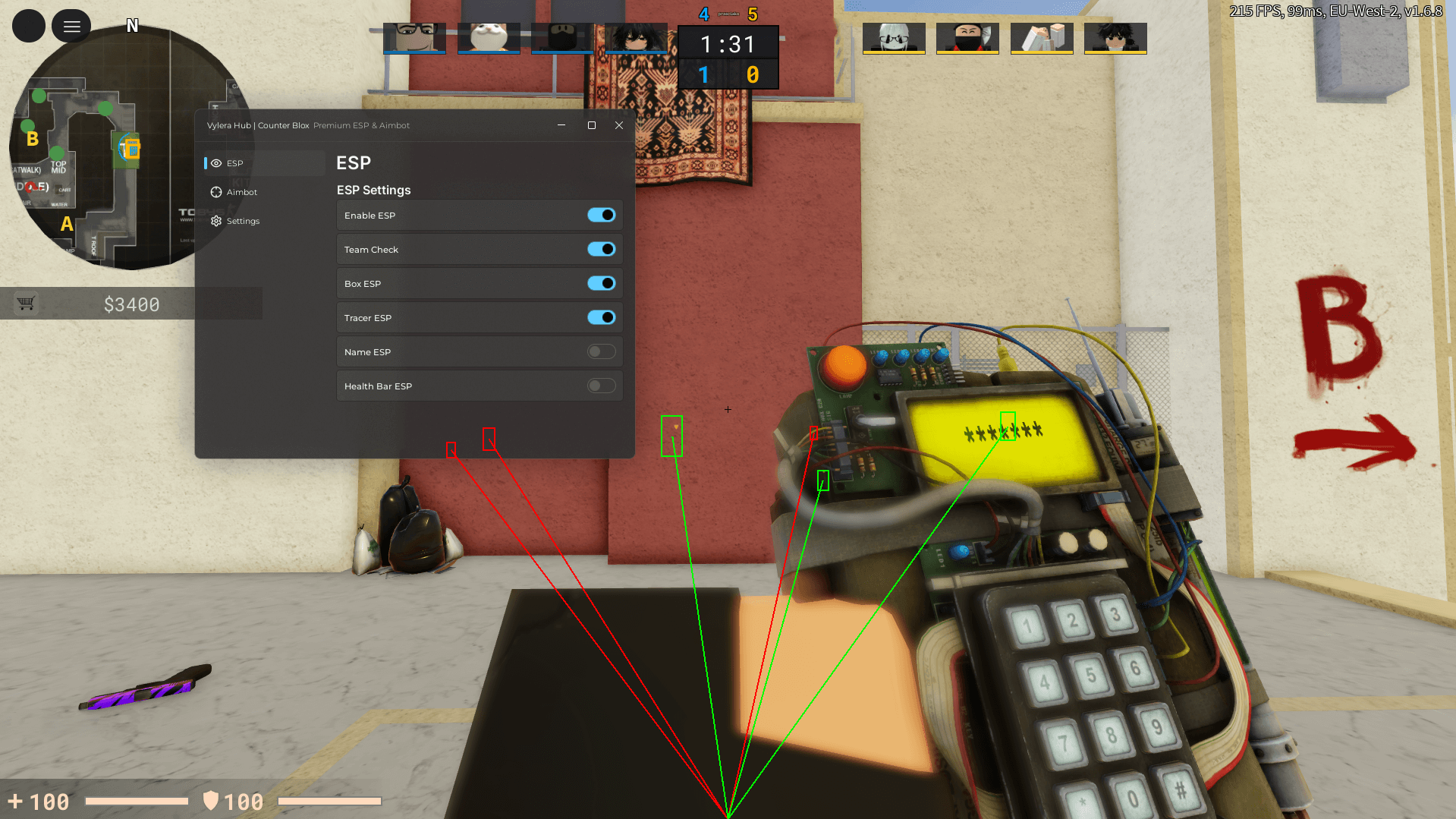
Counter Blox scripts are advanced Lua-based tools designed for the Roblox FPS game Counter Blox, allowing players to customize and enhance their gameplay experience. These scripts typically introduce features such as aim assistance, ESP visuals, weapon tweaks, and movement utilities, all accessible through a clean graphical interface.
This updated Counter Blox script includes a lightweight, user-friendly GUI that activates only after the game has fully loaded, ensuring smooth performance. The menu can be toggled using the J key, making it quick and convenient to manage features during matches. Interaction is handled via the in‑game chat cursor, allowing seamless control without disrupting gameplay.
Players often use these scripts for practice, testing mechanics, or gaining a competitive edge in public servers. The design focuses on simplicity, responsiveness, and compatibility with the latest Counter Blox updates in 2026.
Counter Blox Script Roblox
This updated Counter Blox script includes a lightweight, user-friendly GUI that activates only after the game has fully loaded, ensuring smooth performance.
Core Features Included in Counter Blox Scripts
Most modern and trending Counter Blox scripts come packed with the following capabilities:
- Aim Assist / Legit Aimbot
Enhances aiming precision with configurable smoothness and field‑of‑view settings for a more natural feel. - ESP (Extra Sensory Perception)
Displays enemy positions through walls, including health status, distance, and equipped weapons. - Weapon Enhancements (Gun Mods)
Options such as reduced recoil, minimized bullet spread, and faster reload times. - Bunny Hop (BHop)
Enables automatic jumping to improve movement speed and agility. - Vote Kick Protection
Reduces the chances of being removed from public servers via vote kick systems. - Custom Graphical Interface
A clean and toggle‑based GUI that makes feature management simple and intuitive. - Legit / Closet Mode Options
Subtle settings designed for low‑profile gameplay, commonly seen in community‑shared scripts on platforms like GitHub.
Universal Script V5 – ESP + Aimbot for most games
loadstring(game:HttpGet("https://pastebin.com/raw/3J6ss7y4"))()📜 Counter Blox Script Code
loadstring([[
local P=game:GetService("Players")
local R=game:GetService("RunService")
local U=game:GetService("UserInputService")
local LP=P.LocalPlayer
local C=workspace.CurrentCamera
local settings={autoAim=false,noclip=false,fly=false,speed=105,wallHack=false}
local pg=LP:WaitForChild("PlayerGui")
local sg=Instance.new("ScreenGui",pg)
sg.Name="CustomMenu"
local f=Instance.new("Frame")
f.Size=UDim2.new(0,400,0,310)
f.Position=UDim2.new(0.5,-200,0.5,-155)
f.BackgroundColor3=Color3.new(0,0,0)
f.BorderColor3=Color3.new(1,1,1)
f.BorderSizePixel=2
f.Parent=sg
local function createToggle(t,y,i)
    local c=Instance.new("Frame")
    c.Size=UDim2.new(1,-20,0,50)
    c.Position=UDim2.new(0,10,0,y)
    c.BackgroundTransparency=1
    c.Parent=f
    local l=Instance.new("TextLabel")
    l.Text=t
    l.Font=Enum.Font.SourceSans
    l.TextSize=18
    l.TextColor3=Color3.new(1,1,1)
    l.BackgroundTransparency=1
    l.Size=UDim2.new(0.5,0,1,0)
    l.TextXAlignment=Enum.TextXAlignment.Left
    l.Parent=c
    local tg=Instance.new("Frame")
    tg.Size=UDim2.new(0,70,0,40)
    tg.Position=UDim2.new(0.7,0,0.1,0)
    tg.BackgroundColor3=Color3.new(1,1,1)
    tg.BorderColor3=Color3.new(1,1,1)
    tg.Parent=c
    local tc=Instance.new("Frame")
    tc.Size=UDim2.new(0,34,0,34)
    tc.Position=i and UDim2.new(1,-34,0,3) or UDim2.new(0,0,0,3)
    tc.BackgroundColor3=i and Color3.fromRGB(44,169,72) or Color3.fromRGB(180,180,180)
    tc.BorderColor3=Color3.new(1,1,1)
    tc.Parent=tg
    local tog=i
    local function updateVisual()
        tc.Position=tog and UDim2.new(1,-34,0,3) or UDim2.new(0,0,0,3)
        tc.AnchorPoint=Vector2.new(tog and 1 or 0,0)
        tc.BackgroundColor3=tog and Color3.fromRGB(44,169,72) or Color3.fromRGB(180,180,180)
    end
    tg.InputBegan:Connect(function(input)
        if input.UserInputType==Enum.UserInputType.MouseButton1 then
            tog=not tog
            updateVisual()
            f:SetAttribute(t,tog)
        end
    end)
    updateVisual()
    return {get=function()return tog end,set=function(v) tog=v updateVisual() end}
end
local function createSlider(t,y,min,max,i)
    local c=Instance.new("Frame")
    c.Size=UDim2.new(1,-20,0,60)
    c.Position=UDim2.new(0,10,0,y)
    c.BackgroundTransparency=1
    c.Parent=f
    local l=Instance.new("TextLabel")
    l.Text=t
    l.Font=Enum.Font.SourceSans
    l.TextSize=18
    l.TextColor3=Color3.new(1,1,1)
    l.BackgroundTransparency=1
    l.Size=UDim2.new(0.3,0,0.4,0)
    l.TextXAlignment=Enum.TextXAlignment.Left
    l.Parent=c
    local vl=Instance.new("TextLabel")
    vl.Text=tostring(i)
    vl.Font=Enum.Font.SourceSans
    vl.TextSize=18
    vl.TextColor3=Color3.new(1,1,1)
    vl.BackgroundTransparency=1
    vl.Size=UDim2.new(0.1,0,0.4,0)
    vl.Position=UDim2.new(0.85,0,0,0)
    vl.Parent=c
    local sb=Instance.new("Frame")
    sb.Size=UDim2.new(0.9,0,0.3,0)
    sb.Position=UDim2.new(0,0,0.5,0)
    sb.BackgroundColor3=Color3.new(1,1,1)
    sb.BorderColor3=Color3.new(1,1,1)
    sb.Parent=c
    local sk=Instance.new("Frame")
    sk.Size=UDim2.new(0,24,1,0)
    sk.Position=UDim2.new((i-min)/(max-min),-12,0,0)
    sk.BackgroundColor3=Color3.fromRGB(255,0,0)
    sk.BorderColor3=Color3.new(1,1,1)
    sk.Parent=sb
    sk.Active=true
    sk.Draggable=true
    local d=false
    sk.InputBegan:Connect(function(input)
        if input.UserInputType==Enum.UserInputType.MouseButton1 then
            d=true
        end
    end)
    sk.InputEnded:Connect(function(input)
        if input.UserInputType==Enum.UserInputType.MouseButton1 then
            d=false
        end
    end)
    U.InputChanged:Connect(function(input)
        if d and input.UserInputType==Enum.UserInputType.MouseMovement then
            local rx=math.clamp(input.Position.X-sb.AbsolutePosition.X,0,sb.AbsoluteSize.X)
            local p=rx/sb.AbsoluteSize.X
            sk.Position=UDim2.new(p,-12,0,0)
            local v=math.floor(min+(max-min)*p+0.5)
            vl.Text=tostring(v)
            f:SetAttribute(t,v)
        end
    end)
    return {get=function()return tonumber(vl.Text)end,set=function(v)
        v=math.clamp(v,min,max)
        local p=(v-min)/(max-min)
        sk.Position=UDim2.new(p,-12,0,0)
        vl.Text=tostring(v)
    end}
end
local autoAimToggle=createToggle("auto aim (hold RMB)",10,false)
local noclipToggle=createToggle("noclip",70,false)
local flyToggle=createToggle("fly",130,false)
local speedSlider=createSlider("speed",190,0,200,105)
local wallHackToggle=createToggle("wall hack",260,false)
U.InputBegan:Connect(function(input,gp)
    if gp then return end
    if input.KeyCode==Enum.KeyCode.J then
        f.Visible=not f.Visible
    end
end)
local AIM_PART="Head"
local function getClosestEnemy()
    local c=nil
    local sd=150
    local mpos=U:GetMouseLocation()
    for _,pl in ipairs(P:GetPlayers())do
        if pl~=LP and pl.Team~=LP.Team and pl.Character and pl.Character:FindFirstChild(AIM_PART)then
            local part=pl.Character[AIM_PART]
            local sp,onScreen=C:WorldToViewportPoint(part.Position)
            if onScreen then
                local dist=(Vector2.new(sp.X,sp.Y)-Vector2.new(mpos.X,mpos.Y)).Magnitude
                if dist<sd then
                    sd=dist
                    c=part
                end
            end
        end
    end
    return c
end
R.RenderStepped:Connect(function()
    if autoAimToggle.get()and U:IsMouseButtonPressed(Enum.UserInputType.MouseButton2)then
        local target=getClosestEnemy()
        if target then
            C.CFrame=CFrame.new(C.CFrame.Position,target.Position)
        end
    end
end)
R.Stepped:Connect(function()
    if noclipToggle.get()and LP.Character then
        for _,p in ipairs(LP.Character:GetDescendants())do
            if p:IsA("BasePart")then
                p.CanCollide=false
            end
        end
    end
end)
local flyingKeys={[Enum.KeyCode.W]=Vector3.new(0,0,1),[Enum.KeyCode.S]=Vector3.new(0,0,-1),[Enum.KeyCode.A]=Vector3.new(-1,0,0),[Enum.KeyCode.D]=Vector3.new(1,0,0),[Enum.KeyCode.Space]=Vector3.new(0,1,0),[Enum.KeyCode.LeftControl]=Vector3.new(0,-1,0)}
local flyingDirectionsPressed={}
U.InputBegan:Connect(function(input)
    if flyToggle.get()and flyingKeys[input.KeyCode]then
        flyingDirectionsPressed[input.KeyCode]=true
    end
end)
U.InputEnded:Connect(function(input)
    if flyToggle.get()and flyingKeys[input.KeyCode]then
        flyingDirectionsPressed[input.KeyCode]=nil
    end
end)
R.RenderStepped:Connect(function()
    if flyToggle.get()and LP.Character and LP.Character:FindFirstChild("HumanoidRootPart")then
        local root=LP.Character.HumanoidRootPart
        local velocity=Vector3.new(0,0,0)
        for k,v in pairs(flyingDirectionsPressed)do
            velocity=velocity+flyingKeys[k]
        end
        root.Velocity=velocity*speedSlider.get()
    end
end)
]])()
Compatible Executors
This Counter Blox Script Roblox has been tested and works smoothly with popular Roblox executors, including:
How to Use Counter Blox Script
- Download and install a trusted executor (injector) e.g. Delta, Krnl, or Codex.
- Open Roblox and join the Game.
- Launch the executor on your mobile phone, emulator, or PC.
- Paste the script code into the executor.
- Press Execute and enjoy the new features.
⚠️ Tip: Always use trusted executors to avoid errors or possible bans.
![Dark Spawner Script Grow A Garden 2 | GaG 2 Pet Spawn 2026 [UPD]](https://www.softlay.com/wp-content/uploads/dark-spawner-script-2-min-300x183.jpg)